
Proxmox Virtual Environment importer
Versio.io can import, historize and process monitoring data from Proxmox Virtual Environment (PVE).
Configuration
You can find the configuration option in Versio.io at Environment settings > OneImporter > Configurations > Proxmox Virtual Environment.
Here you can edit all existing configurations, create new configurations or delete existing configurations.
To add a new configuration, enter a Name for your importer and an Entity suffix (default: -pve) to clearly identify your Proxmox entities.
Note that the Entity suffix is fixed and cannot be changed afterwards.
Click Add to proceed to the configuration.
To edit an existing configuration, click the arrow on the left of your importer name to expand the configuration options.
The following configuration options are available:
| Field | Description | Advice |
|---|---|---|
| Name | Meaningful name | Add the word "Proxmox" to identify the importer when viewing the logs |
| Active | Option to activate and deactivate the configuration. Data is only imported if the configuration is activated. | |
| Server URL | Proxmox server URL to get data from | |
| API token | PVEAPIToken=[ Token ID ]=[ Secret ] | |
| Entities | Select all required entities | |
| Executing OneImporter | Select a Versio.io OneImporter to import the data based on the importer configuration. | Requires an installed OneImporter: Installation instructions |
| Schedule time (cron format) | Determine the frequency of imports in CRON format | Learn more about CRON format: https://en.wikipedia.org/wiki/Cron |
Table: Proxmox Virtual Environment configuration parameters
The following image is an example of a Proxmox configuration:
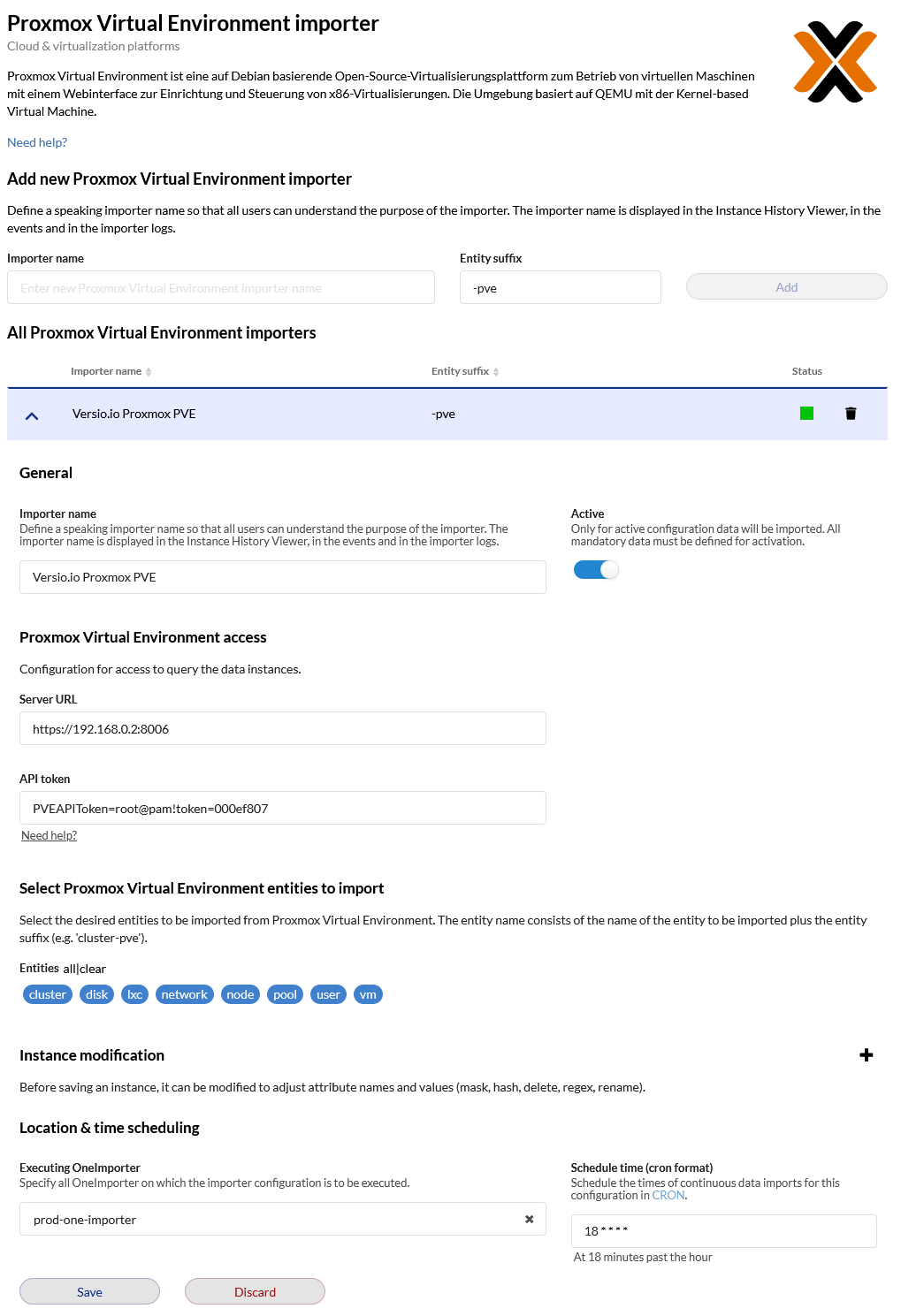 Figure: Example of a Versio.io Proxmox configuration
Proxmox API token
To generate an API token for Proxmox, go to Datacenter -> Permissions -> API Token -> Add in the Proxmox web UI.
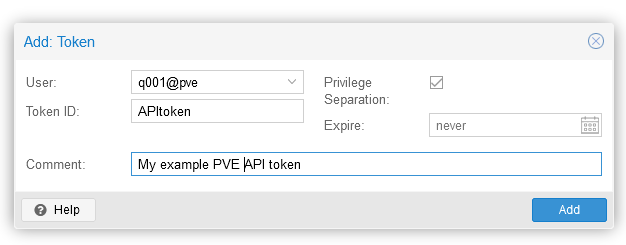
After clicking Add, the UI shows the following:
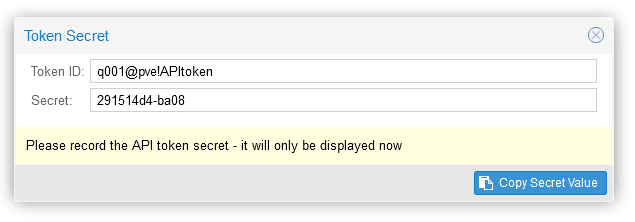
Example
The Versio.io OneImporter imports Proxmox data based on a specific configuration into entities with a suffix defined by you (default: pve). To view the imported instances in Versio.io, select 'Asset & Configuration Repository → Instance Viewer'. There you can select your specific instance and click it for a detailed view in the instance history viewer.
The following image is an example of imported Proxmox data:
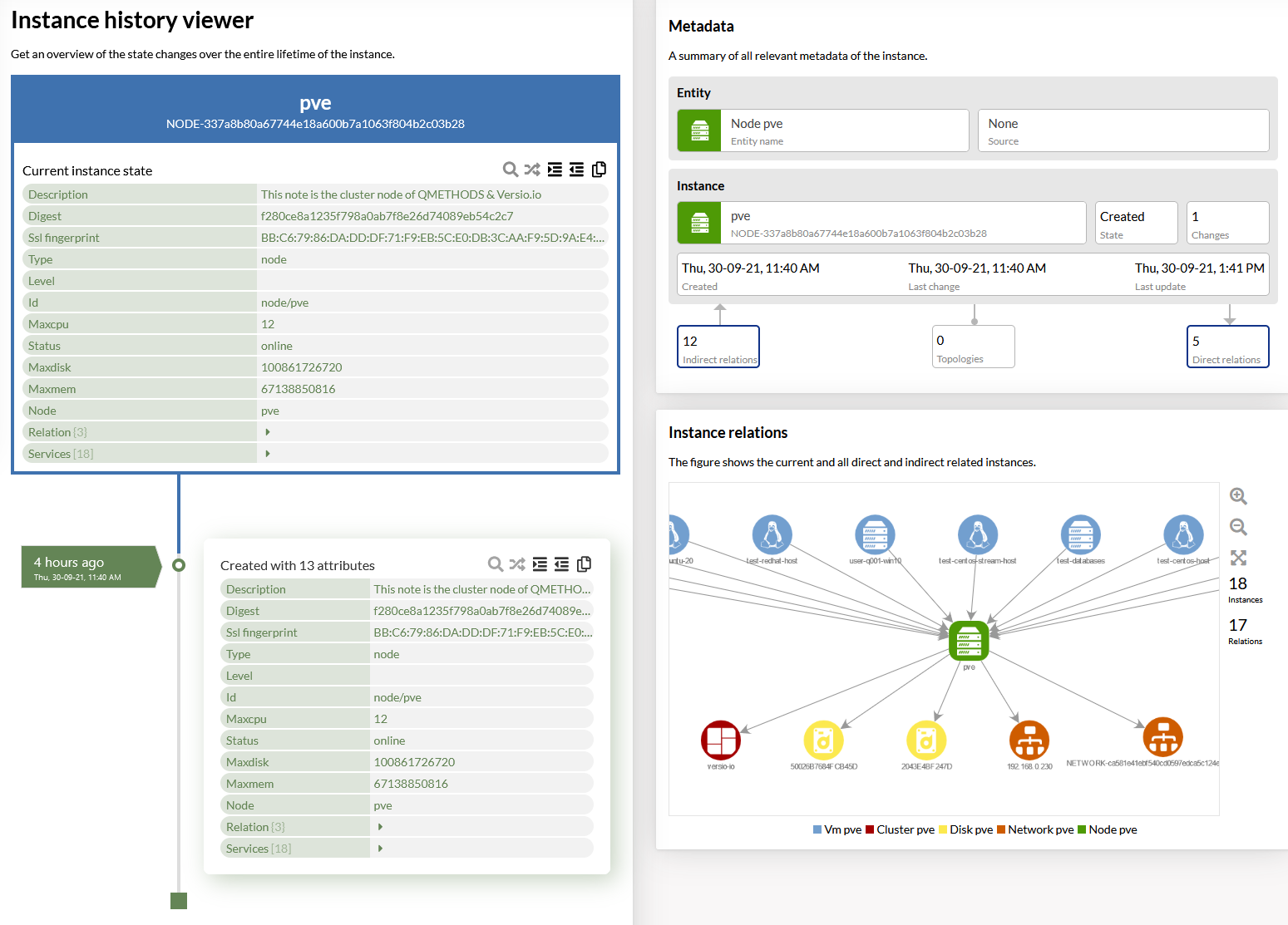
Figure: Overview of a Versio.io Proxmox instance (left) and topology of related instances (right)