Microsoft Excel importer
Versio.io can import, historize and process monitoring data from Microsoft Excel worksheets.
Approach 
The Microsoft Excel importer enables you to insert your own data into the predefined tables of the Versio.io Microsoft Excel template for imports into the Versio.io CMDB database. Each row represents a configuration item (CI) in Versio.io, which is created (instance) or updated (change) in Versio.io.
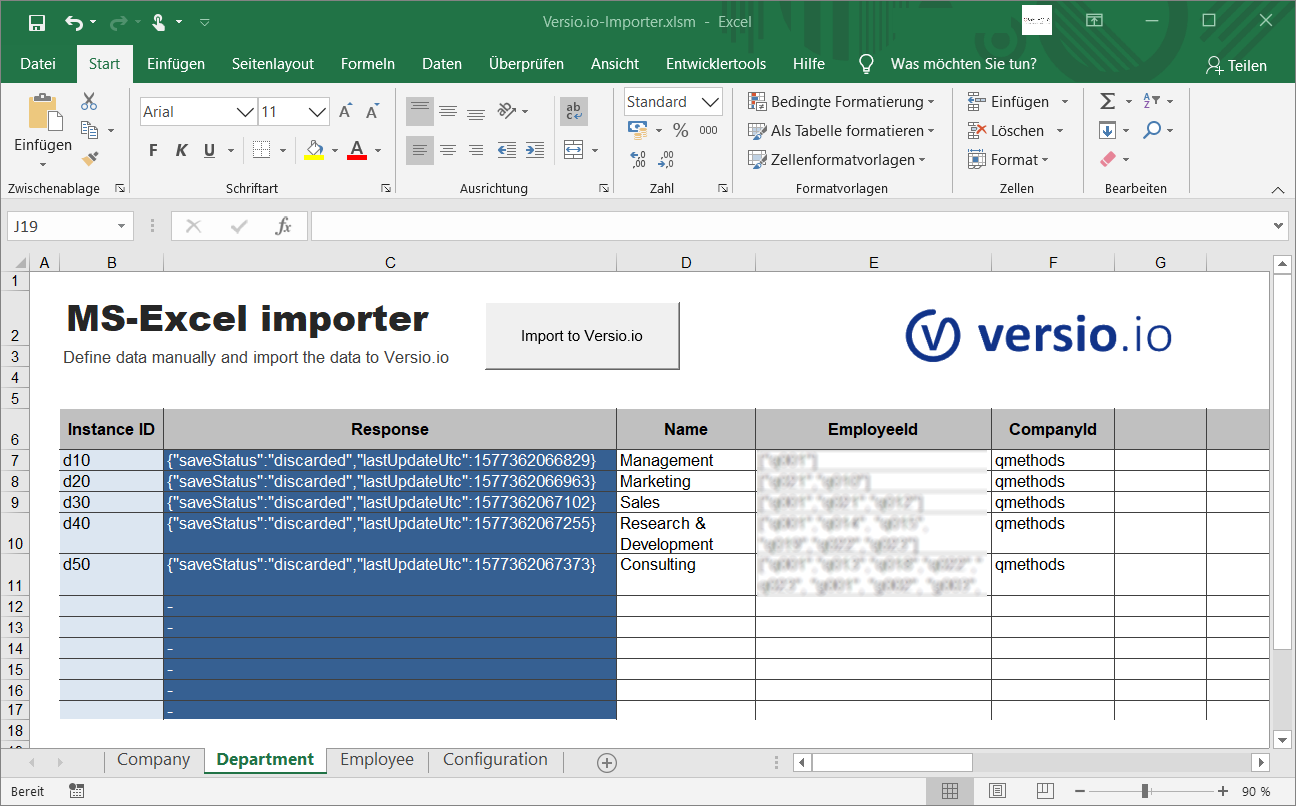 Figure: Microsoft Excel import template
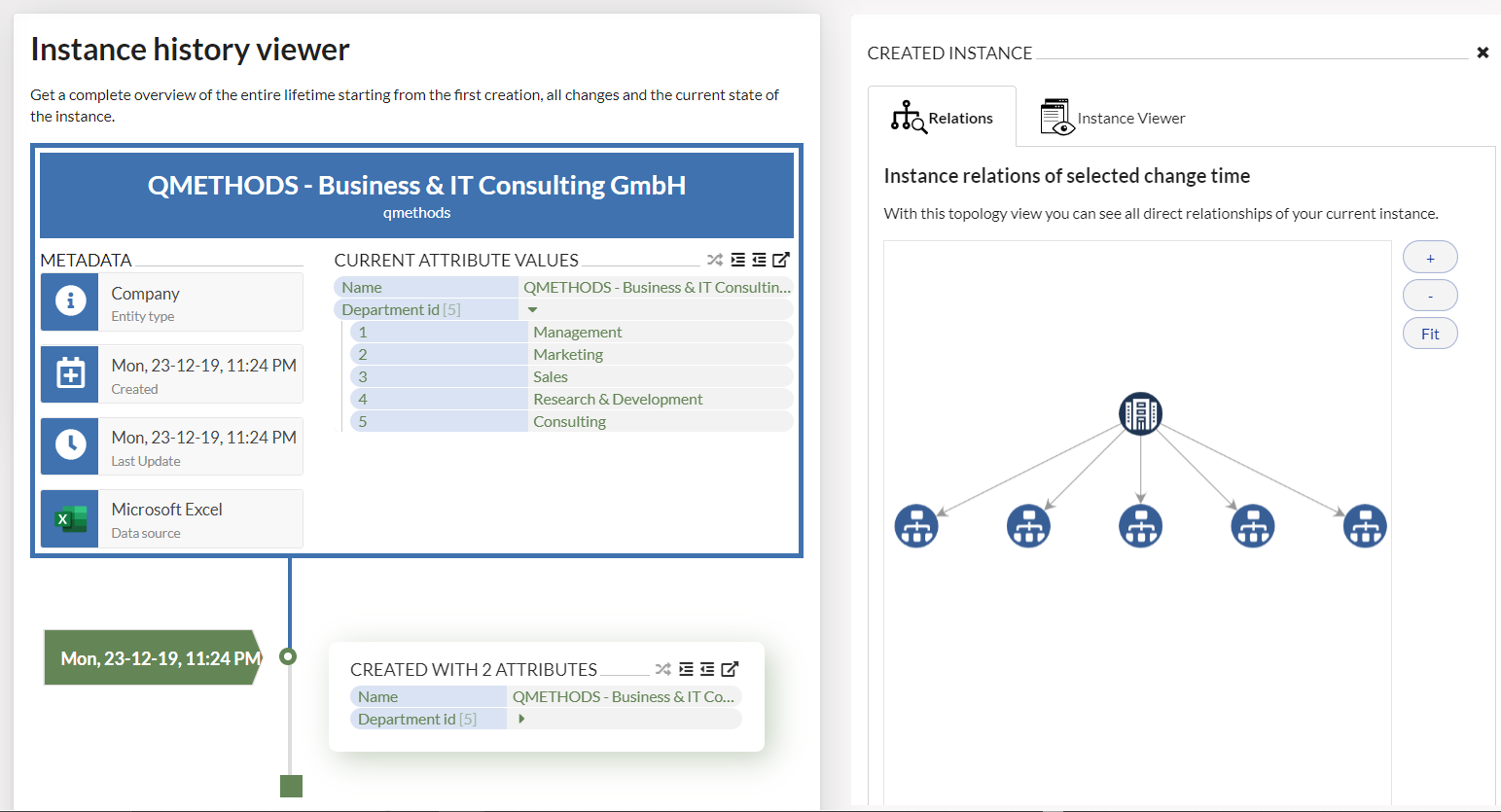 Figure: Microsoft Excel data in Versio.io CMDB
The entity name
The name of the Microsoft Excel worksheet defines the entity name for created instances in the Versio.io database.
The data of an instance or change
The first column of the Microsoft Excel table is reserved for one unique identifier (ID) per instance. You can assign the ID freely using characters, numbers and special characters (no spaces!).
Please make sure that you use each ID only once per entity. Otherwise, you would overwrite data from row X with data from row Y.
Preconditions 
To import data from Microsoft Excel into the Versio.io CMDB, you need the following data:
- URL to your Versio.io instance to access the database service
- Versio.io environment you store your data in
- Versio.io API token with write access for the specific environment and instance
Response
The second column shows the return result of the Versio.io database for every instance. The following Versio.io database statuses can be displayed next to potential error messages:
- created: The Versio.io database recognized that this is a new instance and created it in the database.
- updated: The Versio.io database detected that this is a modified instance and has extended the history of the instance in the database.
- discarded: The Versio.io database detected that there is no change to the instance and only updates the time of the import in the database.
How best to start 
- Download the MS Excel template from the GitHub repository
- Open the MS Excel template
- Customize your personal settings in the "Settings" tab
- URL of the Versio.io server (SaaS is set by default)
- Environment on the Versio.io platform
- Personal API token
- Now you can start adding data in the other example tabs
- Click on the "Import to Versio.io" button to transfer your data from the MS Excel tab to Versio.io
- Have fun :-)