Application frontend
Versio.io can import, historize and process the libraries and frameworks used by a web application.
Configuration
You can find the configuration option in Versio.io at Environment settings > OneImporter > Configurations > Application frontend.
Here you can edit all existing configurations, create new configurations or delete existing configurations. Each configuration can import multiple application frontends into a single specified entity.
To add a new configuration, enter a Name and click Add to proceed to the configuration.
To edit an existing configuration, click the arrow on the left of your importer name to expand the configuration options.
The following configuration options are available:
| Field | Description | Advice |
|---|---|---|
| Name | Meaningful name | Add the phrase "Application frontend" to identify the importer when viewing the logs |
| Active | Option to activate and deactivate the configuration. Data is only imported if the configuration is activated. | |
| Domain & IPs | Enter either domains or IP addresses from which to import data | See table below for valid input formats |
| Instance modification | Before saving an instance, it can be modified to adjust attribute names and values (mask, hash, delete, regex, rename). | |
| Entity name | Name of the entity that imported instances are assigned to | Determine standards about entity names before your first import |
| Executing OneImporter | Select a Versio.io OneImporter to import the data based on the importer configuration. | Requires an installed OneImporter: Installation instructions |
| Schedule time (cron format) | Determine the frequency of imports in CRON format | Learn more about CRON format: https://en.wikipedia.org/wiki/Cron |
Table: Application frontend configuration parameters
The following image is an example of a configuration in Versio.io for application frontend imports:
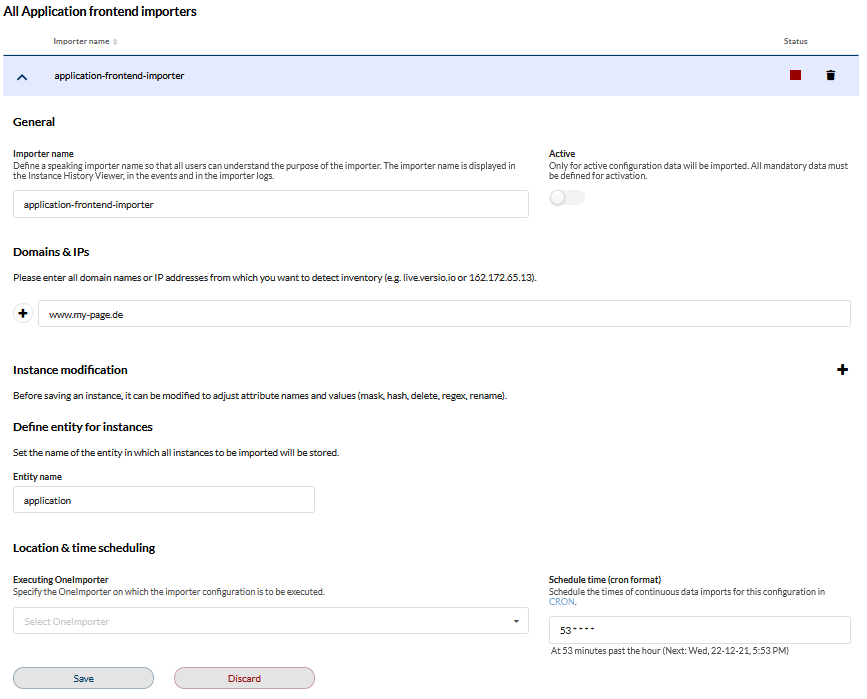 Figure: Example of a configuration in Versio.io for application frontend imports
Example
The Versio.io OneImporter imports libraries and frameworks based on your specific configuration and stores the different instances in the entity defined by you. To view the imported instances in Versio.io, you can select 'Asset & Configuration Repository → Instance Viewer'. There you can select your specific instance and click it for a detailed view in the instance history viewer.
The following image is an example of an imported collection of libraries and frameworks from a web application:
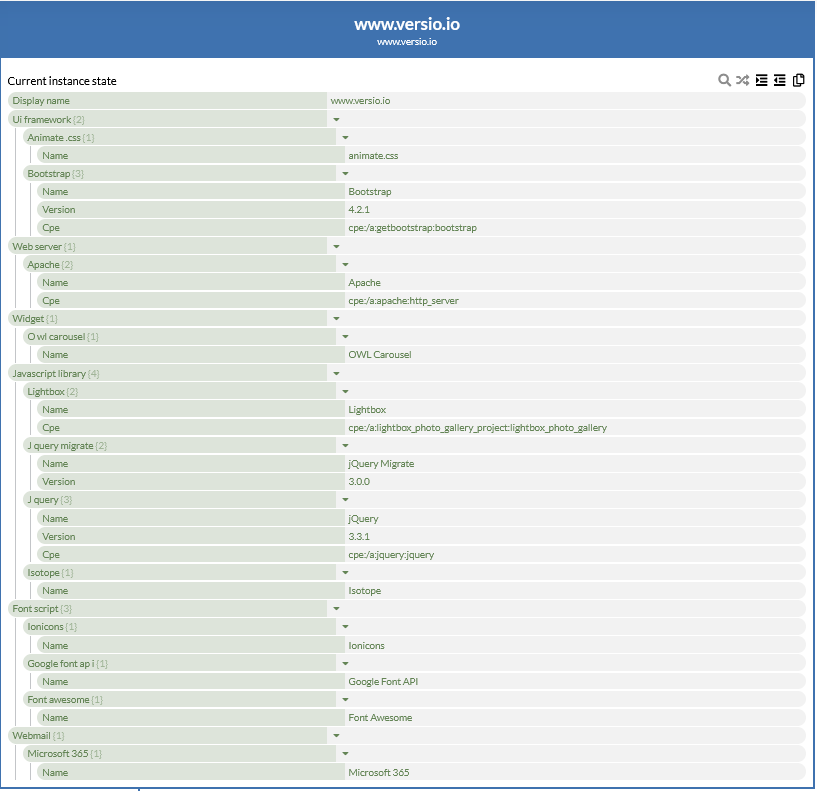 Figure: Example of application libraries and frameworks