
Microsoft Azure importer
Versio.io can import, historize and process monitoring data from Microsoft Azure.
Configuration
You can find the configuration option in Versio.io at Environment settings > OneImporter > Configurations > Azure.
Here you can edit all existing configurations, create new configurations or delete existing configurations.
To add a new configuration, enter a Name for your importer and an Entity suffix (default: -azure) to clearly identify your Azure entities.
Note that the Entity suffix is fixed and cannot be changed afterwards.
Click Add to proceed to the configuration.
To edit an existing configuration, click the arrow on the left of your importer name to expand the configuration options.
The following configuration options are available:
| Field | Description | Advice |
|---|---|---|
| Name | Meaningful name | Add the word "Azure" to identify the importer when viewing the logs |
| Active | Option to activate and deactivate the configuration. Data is only imported if the configuration is activated. | |
| Tenant ID | Go to Azure Active Directory > Overview and copy the tenant ID |
|
| Application ID | Go to Azure Active Directory > App Registrations > [Click relevant application] > Overview and copy the Application (client) ID |
|
| Application Secret | Go to Azure Active Directory > App Registrations > [Click relevant application] > Certificates & secrets > Client secrets > New client secret > [Configure and click Save] and copy and store the secret. There is no possibility to retrieve the secret after leaving this page. |
|
| Executing OneImporter | Select a Versio.io OneImporter to import the data based on the importer configuration. | Requires an installed OneImporter: Installation instructions |
| Schedule time (cron format) | Determine the frequency of imports in CRON format | Learn more about CRON format: https://en.wikipedia.org/wiki/Cron |
Table: Azure configuration parameters
The following image is an example of an Azure configuration:
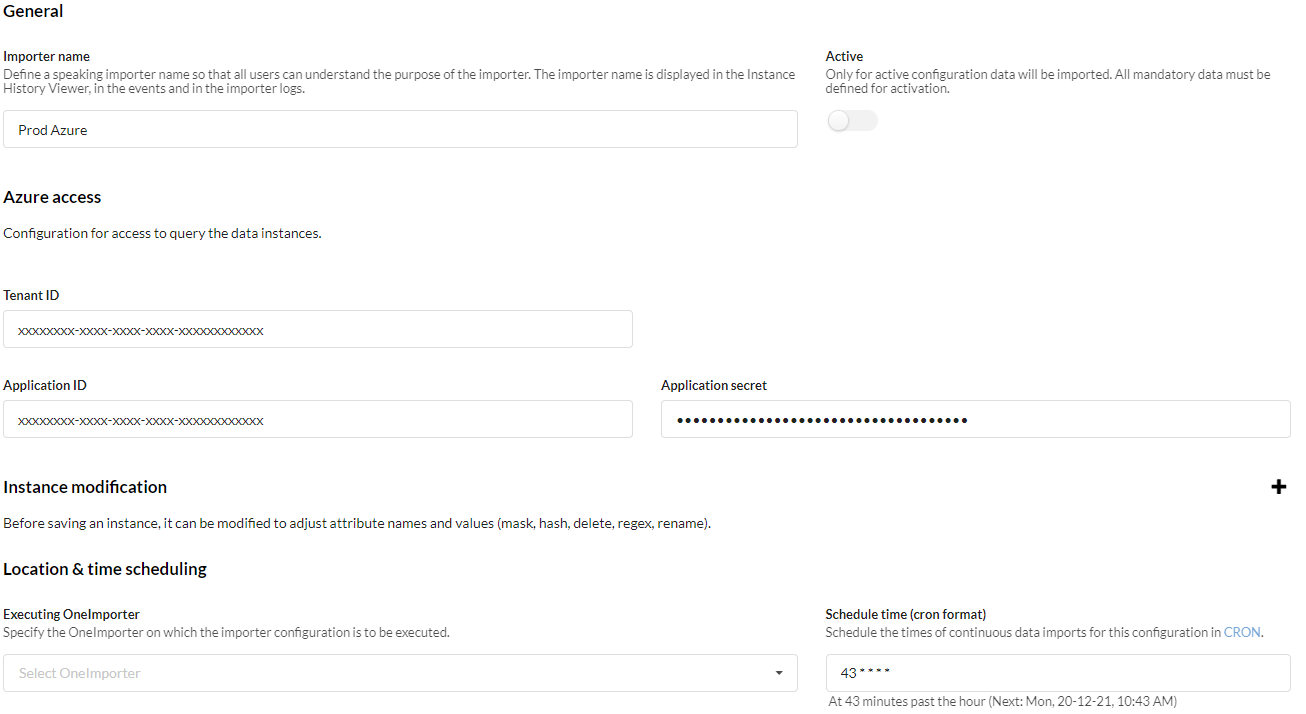 Figure: Example of a Versio.io Azure configuration
Azure Application API permissions
The application set up in Azure should have API permissions for the Microsoft Graph API using Application permissions. Here, the read permissions for Azure resources (PrivilegedAccess.Read.AzureResources) are required.
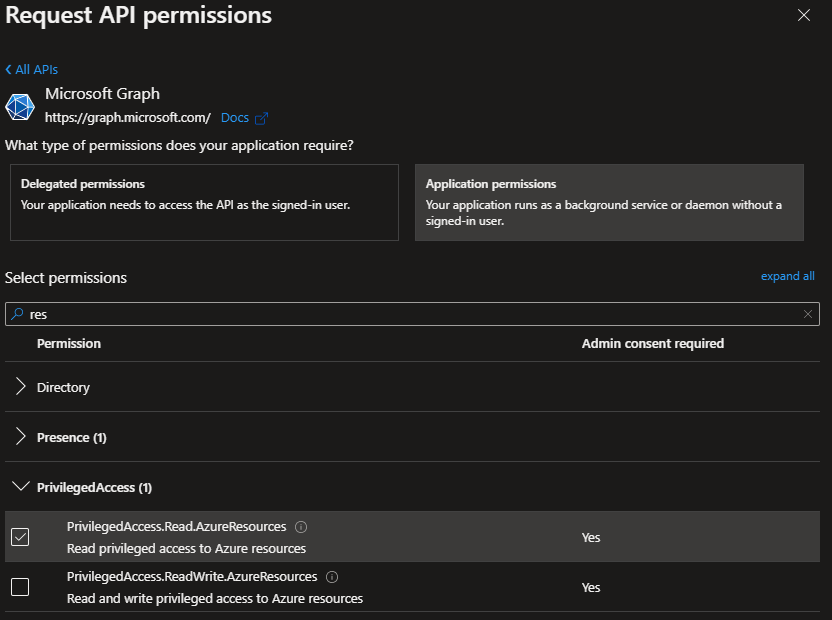
Figure: Azure screenshot for application API permission configuration
In addition, for each subscription, it must be configured that the application has access to it:
Subscriptions > [Click relevant subscription] > Access control (IAM) > Add role assignment >[Select "Reader" role] > [Add the application as member]
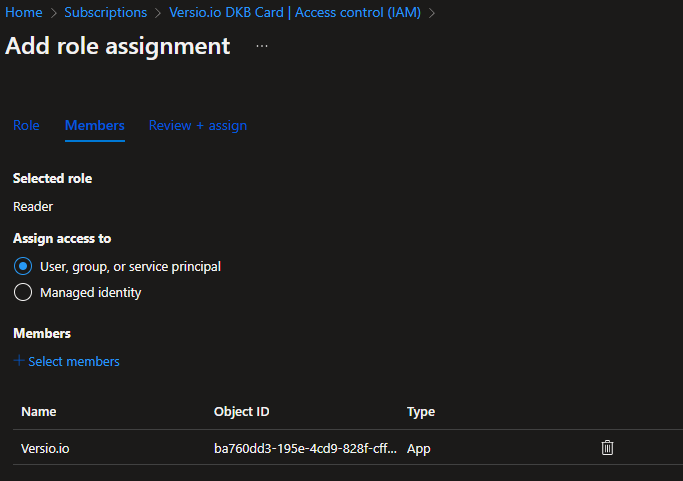
Figure: Azure screenshot for subscription role assignment
Example
The Versio.io OneImporter imports Azure data based on a specific configuration into entities with a suffix defined by you (default: -azure). To view the imported instances in Versio.io, select 'Asset & Configuration Repository → Instance Viewer'. There you can select your specific instance and click it for a detailed view in the instance history viewer.
The following image is an example of imported Azure data:
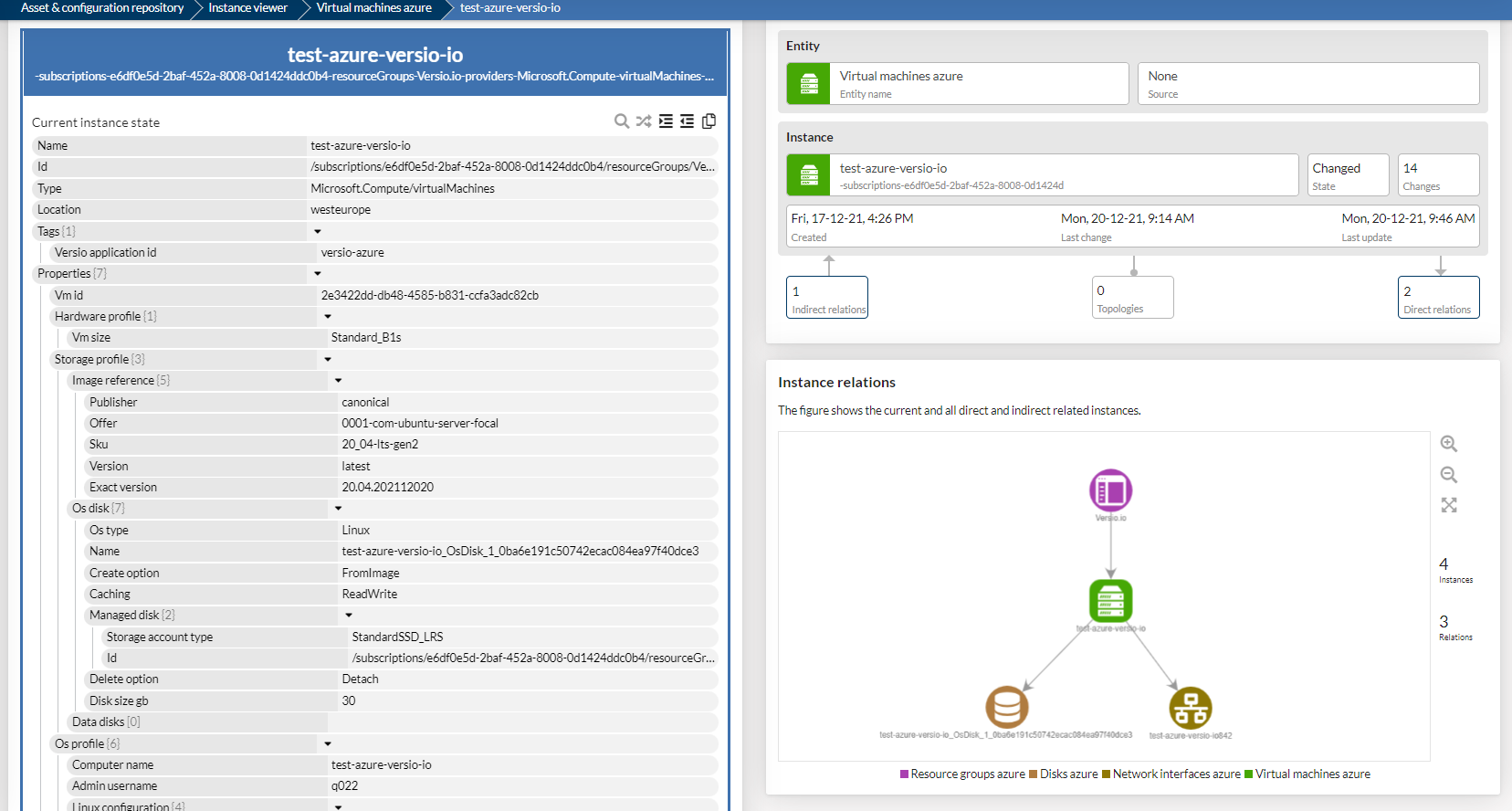
Figure: Overview of a Versio.io Azure instance (left) and topology of related instances (right)
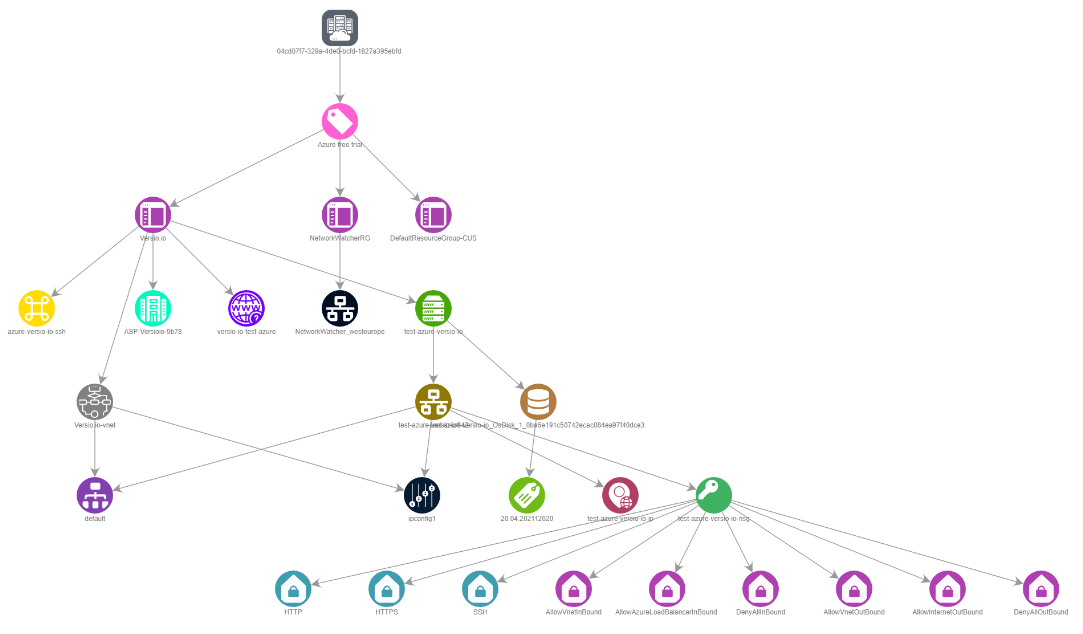
Figure: Overview of a Versio.io Azure topology